

1. Configure Your Source Database
PowerSync needs to connect to your source database (Postgres, MongoDB, MySQL, SQL Server or Convex) to replicate data. Before setting up PowerSync, you need to configure your database with the appropriate permissions and replication settings.- Postgres
- MongoDB Atlas
- MySQL (Beta)
- SQL Server (Beta)
- Convex (Experimental)
Configuring Postgres for PowerSync involves three main tasks:
- Enable logical replication: PowerSync reads the Postgres WAL using logical replication. Set
wal_level = logicalin your Postgres configuration. - Create a PowerSync database user: Create a role with replication privileges and read-only access to your tables.
- Create a
powersyncpublication: Create a logical replication publication namedpowersyncto specify which tables to replicate.
- Version compatibility: PowerSync requires Postgres version 11 or greater.
2. Set Up PowerSync Service Instance
PowerSync is available as a cloud-hosted service (PowerSync Cloud) or can be self-hosted (PowerSync Open Edition or PowerSync Enterprise Self-Hosted Edition).- Dashboard (Cloud)
- CLI (Cloud)
- CLI (Self-Hosted)
- Manual (Self-Hosted)
If you haven’t yet, sign up for a free PowerSync Cloud account here.After signing up, you will be taken to the PowerSync Dashboard.Here, create a new project. Development and Production instances of the PowerSync Service will be created by default in the project.
3. Connect PowerSync to Your Source Database
The next step is to connect your PowerSync Service instance to your source database.- Dashboard (Cloud)
- CLI (Cloud)
- CLI (Self-Hosted)
- Manual (Self-Hosted)
In the PowerSync Dashboard, select your project and instance, then go to Database Connections:
- Click Connect to Source Database
- Select the appropriate database type tab (Postgres, MongoDB, MySQL, SQL Server or Convex)
- Fill in your connection details:
Note: Use the username (e.g.,
powersync_role) and password you created in Step 1: Configure your Source Database.- Postgres: Host, Port (5432), Database name, Username, Password, SSL Mode
- MongoDB: Connection URI (e.g.,
mongodb+srv://user:pass@cluster.mongodb.net/database) - MySQL: Host, Port (3306), Database name, Username, Password
- Convex: Deployment URL and deploy key. See Convex Source Database Setup.
- SQL Server: Name, Host, Port (1433), Database name, Username, Password
- Click Test Connection to verify
- Click Save Connection
4. Define Sync Streams
PowerSync uses Sync Streams to control which data gets synced to which users/devices, using SQL-like queries defined in YAML format. Start with simple auto-subscribed streams that sync data to all users by default:Deploy Your Configuration
- Dashboard (Cloud)
- CLI (Cloud)
- CLI (Self-Hosted)
- Manual (Self-Hosted)
In the PowerSync Dashboard:
- Select your project and instance
- Go to the Sync Streams view
- Edit the YAML directly in the dashboard
- Click Deploy to validate and deploy your Sync Streams
Table/collection names in your configuration must match the table names defined in your client-side schema (defined in a later step below).
5. Generate a Development Token
For quick development and testing, you can generate a temporary development token instead of implementing full authentication. You’ll use this token for two purposes:- Testing with the Sync Diagnostics Client (in the next step) to verify your setup and Sync Streams
- Connecting your app (in a later step) to test the client SDK integration
- Dashboard (Cloud)
- CLI (Cloud)
- Self-Hosted
- In the PowerSync Dashboard, select your project and instance
- Go to the Client Auth view
- Check the Development tokens setting and save your changes
- Click the Connect button in the top bar
- Enter token subject: Since you’re starting with simple streams or buckets that sync all data to all users (as we recommended in the previous step), you can just put something like
test-useras the token subject (which would normally be the user ID you want to test with). - Click Generate token and copy the token
Development tokens expire after 12 hours.
6. [Optional] Test Sync with the Sync Diagnostics Client
Before implementing the PowerSync Client SDK in your app, you can validate that syncing is working correctly using our Sync Diagnostics Client (this hosted version works with both PowerSync Cloud and self-hosted setups). Use the development token you generated in the previous step to connect and verify your setup:- PowerSync Cloud
- Self-Hosted
- Go to https://diagnostics-app.powersync.com
- Enter your development token at PowerSync Token (from the Generate a Development Token step above)
- Enter your PowerSync instance URL at PowerSync Endpoint (found in the PowerSync Dashboard - click Connect in the top bar)
- Click Proceed
Checkpoint:Inspect your synced tables in the Sync Diagnostics Client — these should match the Sync Streams you defined previously. This confirms your setup is working correctly before integrating the client SDK into your app.
7. Use the Client SDK
Now it’s time to integrate PowerSync into your app. This involves installing the Client SDK, defining your client-side schema, instantiating the database, connecting to your PowerSync Service instance, and reading/writing data.Install the Client SDK
Add the PowerSync Client SDK to your app project. PowerSync provides SDKs for various platforms and frameworks.- React Native / Expo
- JavaScript Web
- Node.js
- Capacitor
- Tauri
- Dart/Flutter
- Kotlin
- Swift
- .NET
- Rust
Add the PowerSync React Native NPM package to your project:
- npm
- yarn
- pnpm
@op-engineering/op-sqlite is the SQLite library used by the PowerSync SDK on React Native.
It needs to be installed separately because React Native only considers direct dependencies for autolinking.
The PowerSync React Native SDK currently supports version 1.17.0 or later of @op-engineering/op-sqlite.Polyfills and additional notes:
- For async iterator support with watched queries, additional polyfills are required. See the Babel plugins section in the README.
- We recommend adding this metro config to avoid build issues.

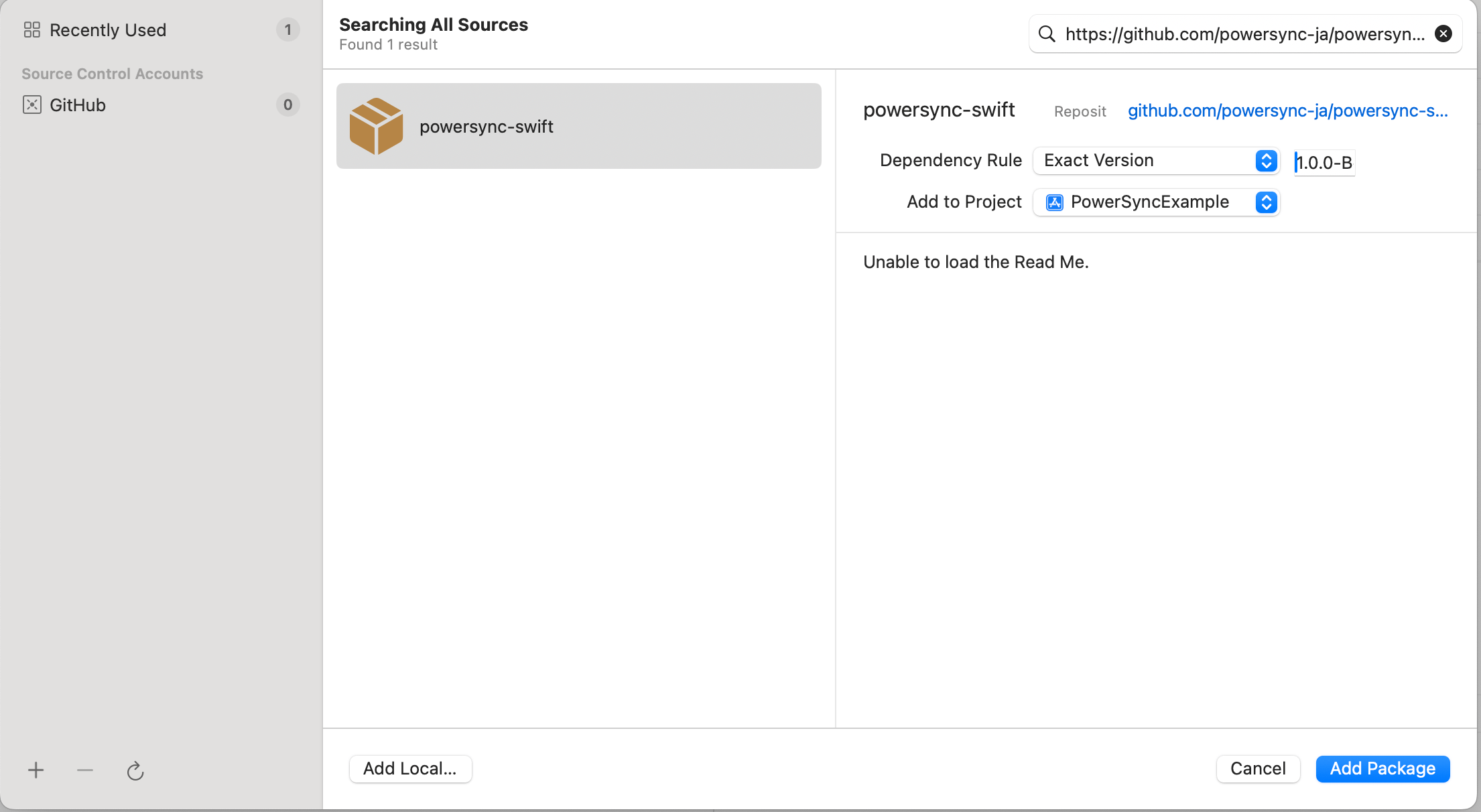
Define Your Client-Side Schema
This refers to the for the managed SQLite database exposed by the PowerSync Client SDKs, that your app can read from and write to. The schema is applied when the database is instantiated (as we’ll show in the next step) — . PowerSync Cloud: The easiest way to generate your schema is using the PowerSync Dashboard. Click the Connect button in the top bar to generate the client-side schema based on your Sync Streams in your preferred language. Here’s an example schema for a simpletodos table:
Note: The schema does not explicitly specify an
id column, since PowerSync automatically creates an id column of type text. PowerSync recommends using UUIDs.Instantiate the PowerSync Database
Now that you have your client-side schema defined, instantiate the PowerSync database in your app. This creates the client-side SQLite database that will be kept in sync with your source database based on your Sync Streams.Connect to PowerSync Service Instance
Connect your client-side PowerSync database to the PowerSync Service instance you created in step 2 by defining a backend connector and callingconnect(). The backend connector handles authentication and uploading mutations to your backend.
You don’t have to worry about the backend connector implementation details right now — you can leave the boilerplate as-is and come back to it later.
Read Data
Read data using SQL queries. The data comes from your client-side SQLite database:Write Data
Write data using SQLINSERT, UPDATE, or DELETE statements. PowerSync automatically queues these mutations and uploads them to your backend via the uploadData() function, once you’ve fully implemented your backend connector (as we’ll talk about below).
Best practice: Use UUIDs when inserting new rows on the client side. UUIDs can be generated offline/locally, allowing for unique identification of records created in the client database before they are synced to the server. See Client ID for more details.
Next Steps
For production deployments, you’ll need to:- Implement Authentication: Replace development tokens with proper JWT-based authentication. PowerSync supports various authentication providers including Supabase, Firebase Auth, Auth0, Clerk, and custom JWT implementations.
- Configure & Integrate Your Backend Application: Set up your backend to handle mutations uploaded from clients.
Additional Resources
- Learn more about Sync Streams for controlling partial syncing.
- Explore Live Queries / Watch Queries for reactive UI updates.
- Check out Example Projects for complete implementations.
- Review the Client SDK References for client-side platform-specific details.